
Online Screen Test
Perform a professional screen test in seconds. Identify dead pixels, backlight bleed, and ghosting with our free, browser-based display calibration tool. No download required.
How To Test Your Monitor?
Get accurate PC bottleneck analysis in three simple steps. Our calculator uses performance benchmarks to identify hardware imbalances.
Select Tests
Choose which display tests to run from our comprehensive suite of monitor diagnostics.
Go Fullscreen
Enter distraction-free fullscreen mode for accurate test results.
Analyze Display
Carefully examine your screen for dead pixels, color issues, and other defects.
Get Results
Know your monitor's true capabilities and identify any potential issues.
Why Test Your Monitor?
Make informed hardware decisions with comprehensive analysis tools designed for gamers and PC enthusiasts.
Detect Dead Pixels
Find stuck, dead, or hot pixels that can ruin your viewing experience. Our dead pixel test cycles through solid colors to reveal any defective pixels on your screen.
Verify Color Accuracy
Ensure your monitor displays colors correctly with our color gradient and gamma tests. Essential for photographers, designers, and content creators.
Test Gaming Performance
Check for ghosting, motion blur, and response time issues. Our response time test helps gamers identify if their monitor is performing at peak levels.
Check Used Monitors
Before buying a used monitor, run our complete test suite to verify the display has no hidden defects. Protect your investment with thorough testing.
Complete Monitor Test Suite
Explore our comprehensive collection of monitor tests designed to evaluate every aspect of your display.
Test 01
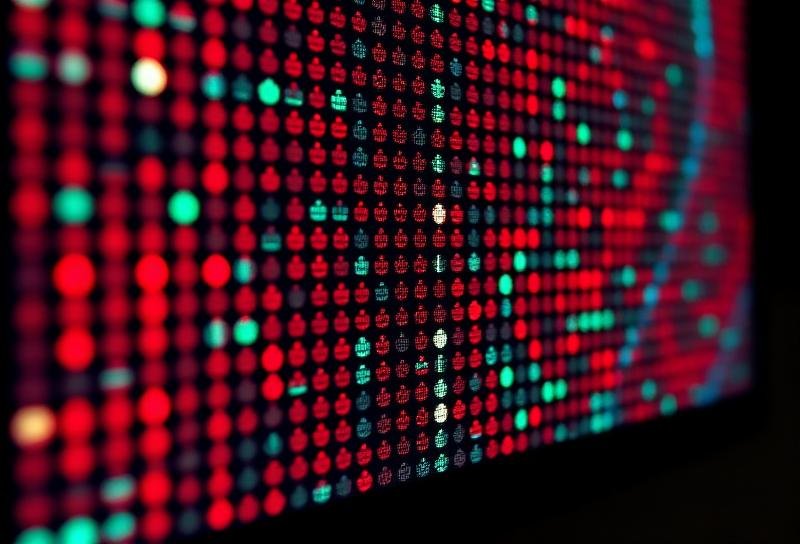
Dead Pixel Test
The dead pixel test displays solid colors across your entire screen, making it easy to spot any pixels that are stuck, dead, or displaying the wrong color. Dead pixels appear as tiny black or colored dots that don’t change with the rest of the screen.
What to look for:
- Black dots that don’t light up (dead pixels)
- Colored dots stuck on one color (stuck pixels)
- Bright white dots that won’t turn off (hot pixels)
Test 02
Uniformity Test
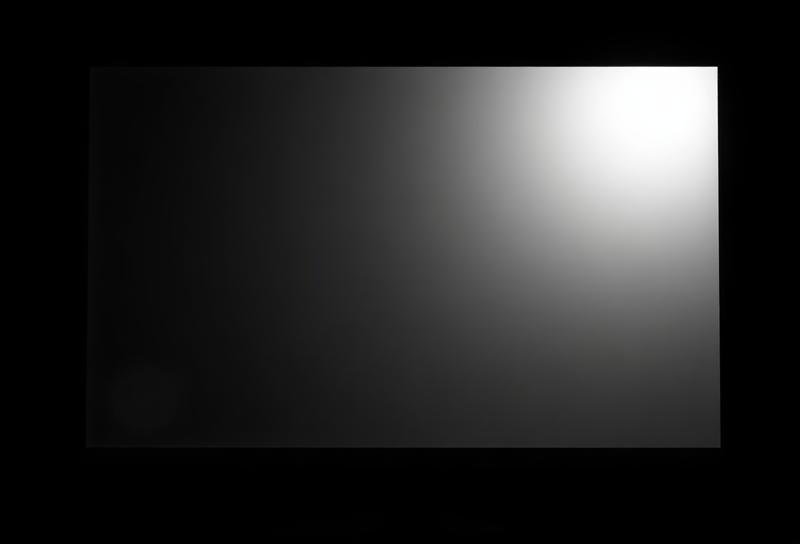
The uniformity test helps you identify uneven lighting across your monitor. This is especially important for LCD monitors where backlight bleeding and clouding are common issues. The test displays solid colors to reveal brightness inconsistencies.
What to look for:
- Light patches in corners (backlight bleeding)
- Cloudy or uneven areas across the screen
- Color tinting in specific regions
Test 03
Response Time Test
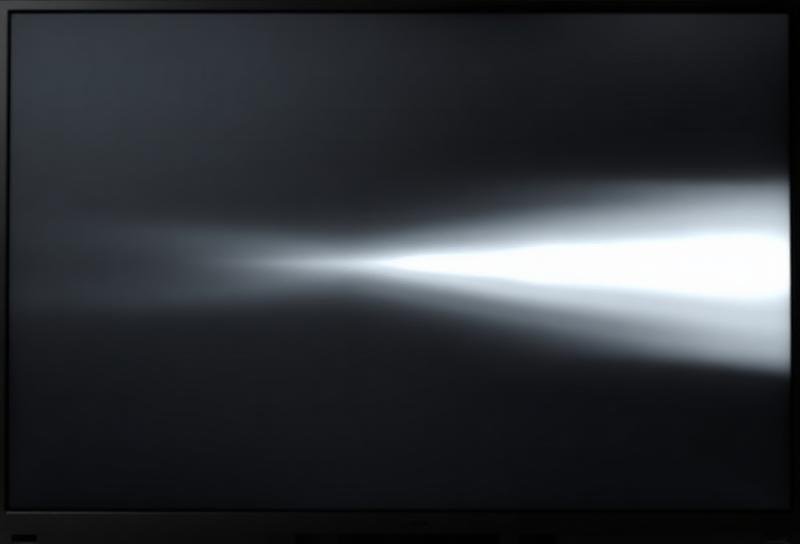
Measure how quickly your monitor responds to pixel changes. High response times cause ghosting and motion blur, which is particularly noticeable in fast-paced games and videos. This test shows moving objects to reveal trailing artifacts.
What to look for:
- Trailing shadows behind moving objects (ghosting)
- Blurry edges during motion (motion blur)
- Inverse ghosting or corona effects
Test 04
Color Gradient Test
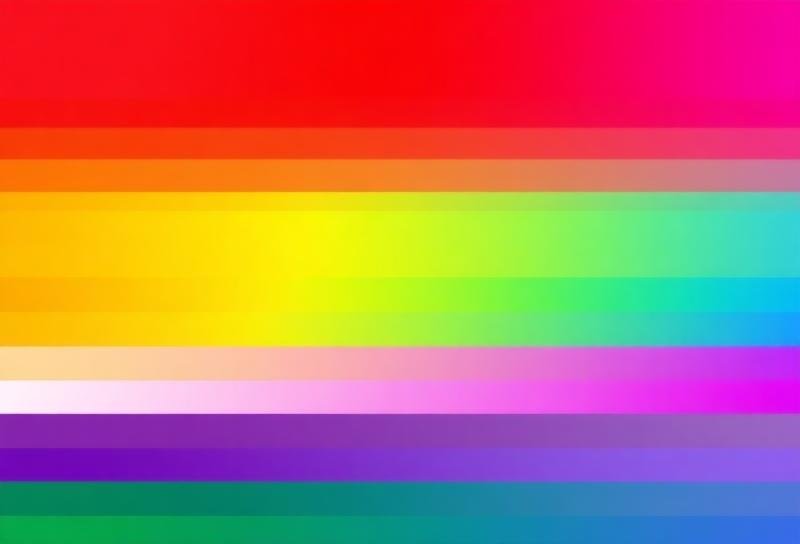
The gradient test displays smooth color transitions to reveal banding issues. Color banding appears as visible steps or lines in what should be smooth gradients. This is crucial for photo editing and video production.
What to look for:
- Visible bands or steps in gradients
- Posterization effects in color transitions
- Dithering patterns in smooth areas
Test 05
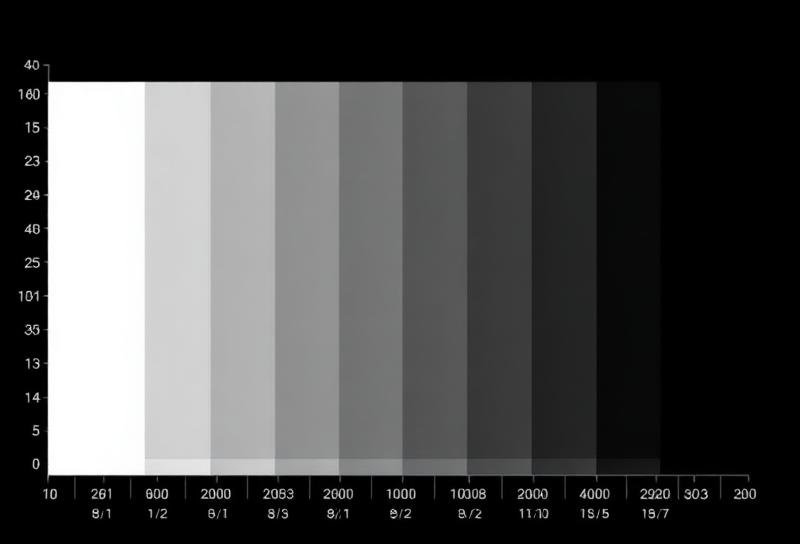
Gamma Test
Test your monitor’s gamma settings to ensure proper brightness reproduction. Correct gamma is essential for accurate image display. The test shows patterns that should appear uniform when gamma is properly calibrated.
What to look for:
- Pattern visibility at different brightness levels
- Shadow detail visibility (gamma too high/low)
- Crushed blacks or washed-out highlights
Test 06
Viewing Angle Test
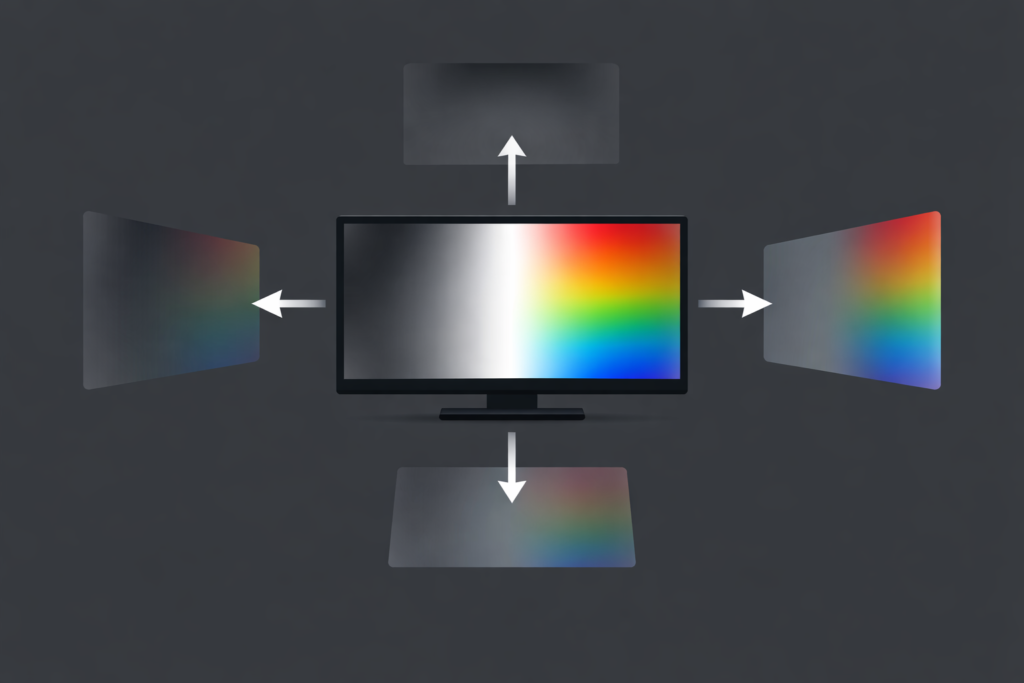
Evaluate how your monitor’s image quality changes when viewed from different angles. IPS panels offer better viewing angles than TN panels, but may exhibit IPS glow. This test helps you understand your display’s limitations.
What to look for:
- Color shifting when viewed at angles
- Brightness changes from off-center viewing
- IPS glow in dark scenes (for IPS monitors)
Test 07
Sharpness Test
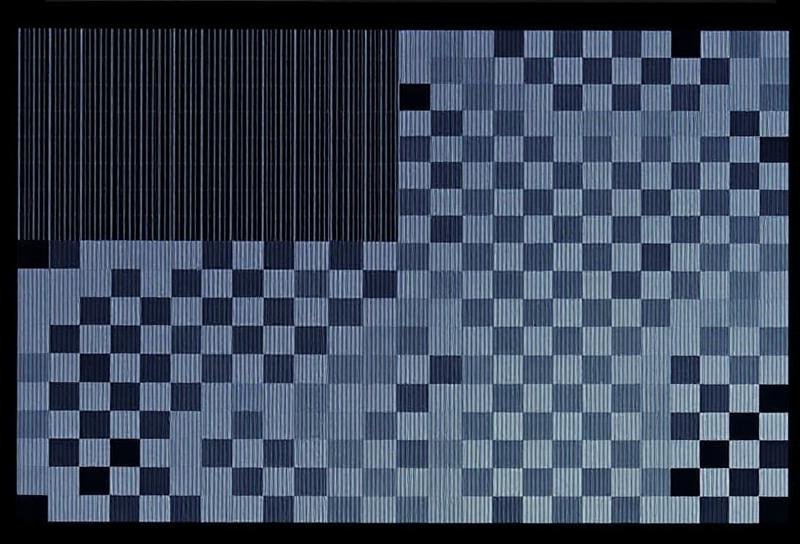
The sharpness test displays fine patterns and text to evaluate your monitor’s ability to render sharp details. This is important for reading text and viewing high-resolution content. Oversharpening can cause halos around edges.
What to look for:
- Clear, crisp text without fuzzy edges
- Fine lines and patterns without artifacts
- Halos or ringing around high-contrast edges
Test 08
Color Distance Test
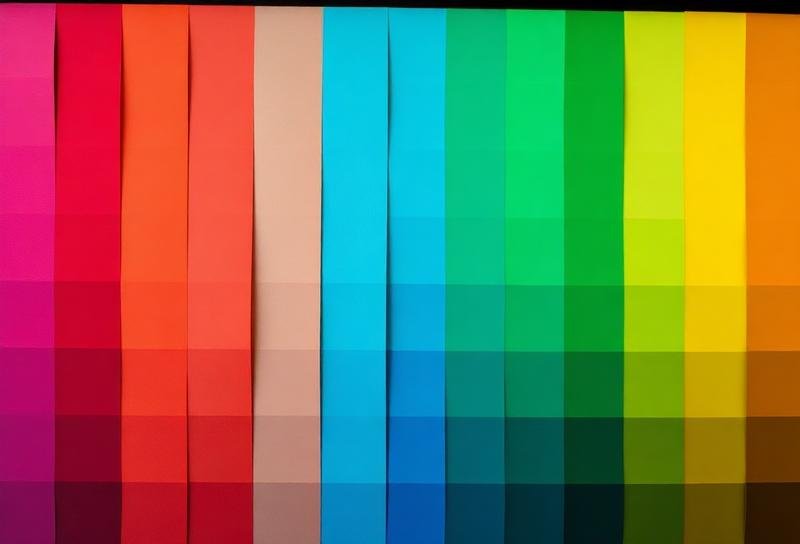
Measure your monitor’s ability to display subtle color differences. This test shows similar colors side by side to evaluate color accuracy and whether you can distinguish between close shades.
What to look for:
- Ability to distinguish similar colors
- Consistent color differentiation across the screen
- Any merged or indistinguishable color pairs
Frequently Asked Questions
Everything you need to know about PC bottlenecks, performance optimization, and hardware compatibility.
What is a screen test?
A screen test is a diagnostic tool that helps you evaluate your monitor’s display quality. It checks for issues like dead pixels, backlight bleed, color accuracy, and response time. Running these tests ensures your display is functioning correctly for gaming, graphic design, or everyday use.