
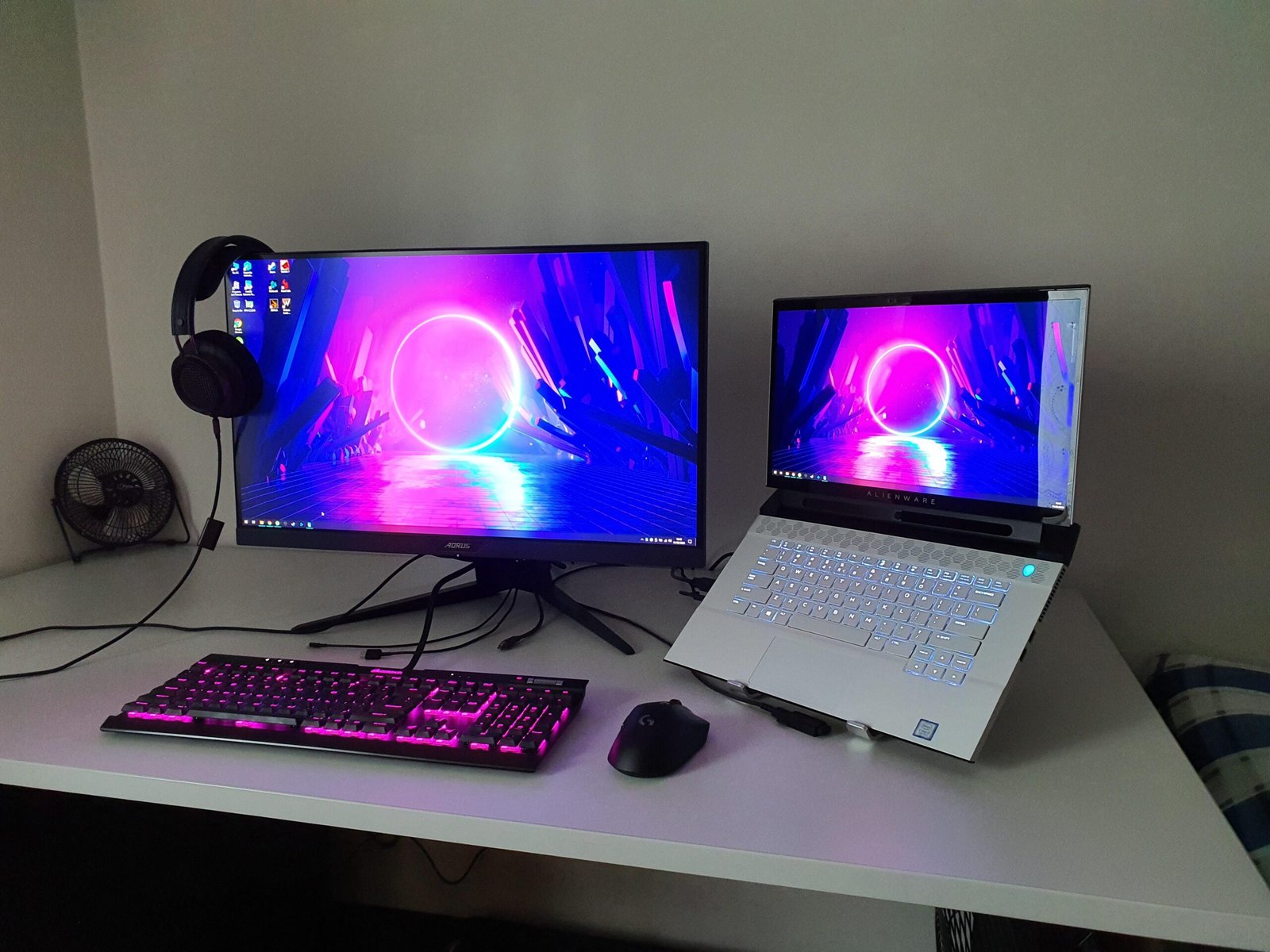
Want to extend your workspace without buying a second monitor? You can use a spare Windows laptop as a monitor for another computer, but it’s not as simple as plugging in an HDMI cable. Laptops generally don’t have video input ports, so you need to use built-in operating system features or software to share the screen.
This guide walks through when it’s possible, how it works in Windows, the best methods to set it up, and some alternatives if your devices don’t support the needed features.
Can You Use a Laptop as a Monitor?
Yes, but not with a simple HDMI cable.
The majority of laptops feature HDMI-out ports only, so video is sent to another display instead of being received as input. Laptops do not come with video input circuitry like a dedicated monitor.
So if you connect two laptops via HDMI, nothing is going to happen.
Instead, you must use:
- Windows built-in Wireless Display (Miracast).
- Network-based display software.
- Remote desktop tools.
- A capture card (advanced workaround).
So let’s look into all the methods of how to use a laptop as monitor for another computer.
Different Methods of Using Laptop as Monitor
Here are some of the ways of making your laptop as a second monitor or gaming monitor, if you want.
Method 1: Use Windows Wireless Display
Windows 10 and Windows 11 come with an option for one computer to display its screen on a second machine over a network. This is using Miracast and is the simplest built-in option.
Requirements
- Both devices should be on Windows 10 or Windows 11.
- Both on the same Wi-Fi network.
- Laptop has to support Wireless Display (Miracast).
Here’s how you can do that:
Step 1: Enable Projection on the Laptop (Screen You Want to Use)
- Open Settings.
- Click System.
- Select Projecting to this PC.
Some Windows and Android devices can project to this PC, select:
- Available everywhere (or secure networks).
- Set pairing preference (PIN optional).
If you don’t see this option, you probably need to install the Wireless Display optional feature from:
Settings > Apps > Optional Features > Add a Feature> Wireless Display
Step 2: Connect from the Main Computer Step
On the primary computer:
- Press Windows + K.
- Choose Connect to a wireless display.
- Select your laptop from the dropdown menus and you`ll be given a list of all compatible Laptop RAM.
- Accept the request from the laptop.
Once connected, press Windows + P to choose:
- Extend (adds workspace).
- Duplicate (mirrors screen).
- Second screen only.
Best Use Case
Perfect for productivity tasks such as browsing, documents, coding or some light designing.
Limitation
There may be slight latency and thus may not work along well with a gaming pc or systems used for heavy workings.
Method 2: Use Third-Party Software (More Flexible)
If Windows projection doesn’t work or you need better flexibility, third-party software can create a virtual display over your network.
Popular Tools
- SpaceDesk
It is a free and reliable tool that works over LAN or Wi-Fi and supports extended display mode.
- Deskreen
It is a browser-based solution that works cross-platform and requires a simple setup, such as:
- Install server software on your main PC.
- Install viewer app on your laptop.
- Ensure both devices are on the same network.
- Connect through the app interface.
These tools simulate a second monitor, allowing drag-and-drop window movement just like a physical display.
Best Use Case
Ideal when Windows Wireless Display isn’t supported.
Method 3: Use Remote Desktop (For Access, Not Extension)
If your goal is to control another computer rather than extend your workspace, remote desktop tools can help.
Options include:
- Microsoft Remote Desktop.
- TeamViewer.
- Chrome Remote Desktop.
This method mirrors the entire system instead of acting as a separate monitor.
Important Difference
- Remote desktop ≠ second monitor
- It gives control, not expanded workspace.
Method 4: Use a Capture Card (Hardware Solution)
If you absolutely need a wired connection, a USB HDMI capture card can receive video input from another PC.
Here’s how it works:
- Connect HDMI from the main PC to capture card.
- Plug capture card into laptop via USB.
- Use capture software to view the input.
Downsides
- Additional hardware cost.
- Some input lag.
- Not true extended display (acts like video preview).
This method is more common for streaming setups than productivity work.
Why HDMI Cable Alone Doesn’t Work
A display controller is built into the monitor to display a video signal. This is input hardware that does not exist on most laptops. Which is why when you connect two laptops with HDMI, absolutely nothing happens.
Unless you have a laptop with HDMI input (which is very uncommon), a cable will not suffice.
Performance Tips for Best Results
For the best balance between low input lag and high image quality:
- If possible, use a 5GHz Wi-Fi Network.
- Close heavy background apps.
- Keep devices close to the router.
- Use a wired Ethernet connection
- Disable battery saver mode
Common Troubleshooting Issues
Here are some of the common issues and their quick solutions:
Problem 1: If Wireless Display Not Showing Laptop in List
- Ensure both PCs are in the same network.
- Install Wireless Display optional feature.
- Check the graphics card, update graphics and network drivers.
Problem 2: Connection Keeps Dropping
- Improve Wi-Fi signal.
- Restart router.
- Disable VPN temporarily
Problem 3: High Input Lag
- Switch to Ethernet connection.
- Reduce resolution.
- Close unnecessary applications.
When Should You Just Get a Monitor?
It’s handy to use a laptop as an external monitor in certain situations. But if you:
- Game frequently.
- Do video editing.
- Need color accuracy.
- Require zero latency.
You will get better results always with a true external monitor as contemporary budget monitors are not expensive and have far better stability/refresh rate. Plus, if you could add a futuristic gaming headphone in your cart, the gaming experience could become much more satisfying.
Final Thoughts
Yes, you can use a laptop as a monitor for another computer, but not just through any HDMI cable. Instead you’ll rely on Windows Wireless Display, third-party apps or separate hardware.
The built-in Windows projection feature is the simplest and safest choice for most users. It’s free, you don’t need any additional hardware and it works well for everyday productivity.
If you’re looking for more speed or flexibility, network-based display tools are great alternatives. And if you really care about performance, a physical monitor is still the best long-term investment.
Frequently Asked Questions (FAQs)
- Can I use my laptop as a monitor with just an HDMI cable?
No. Most laptops only have HDMI output ports, not HDMI input. This means they can send video to a monitor but cannot receive video from another computer directly.
- How do I use my Windows laptop as a second monitor wirelessly?
Enable Projecting to this PC in Windows settings on the laptop, then press Windows + K on the main computer to connect. Both devices must be on the same network.
- Does using a laptop as a monitor cause lag?
Yes, there can be slight input lag, especially over Wi-Fi. For best performance, use a strong 5GHz network or a wired Ethernet connection on the primary PC.
- Can I use a Mac laptop as a monitor for a Windows PC?
Not directly using built-in tools. However, third-party apps like SpaceDesk or other remote display solutions may work across platforms depending on compatibility.
- What is the best software to use a laptop as a monitor?
SpaceDesk is one of the most popular free options for Windows. It allows extended display over Wi-Fi or LAN with relatively low latency.
- Is using a Remote Desktop the same as using a second monitor?
No. Remote Desktop mirrors and controls another PC but does not create an extended workspace like a true second monitor setup.
- Can I use a laptop as a monitor for gaming?
It’s not recommended for fast-paced gaming because wireless display methods can introduce noticeable latency. A dedicated monitor provides much better performance.
- Do both computers need to be on the same Wi-Fi network?
Yes, for Windows wireless projection and most third-party software, both devices must be connected to the same local network.