
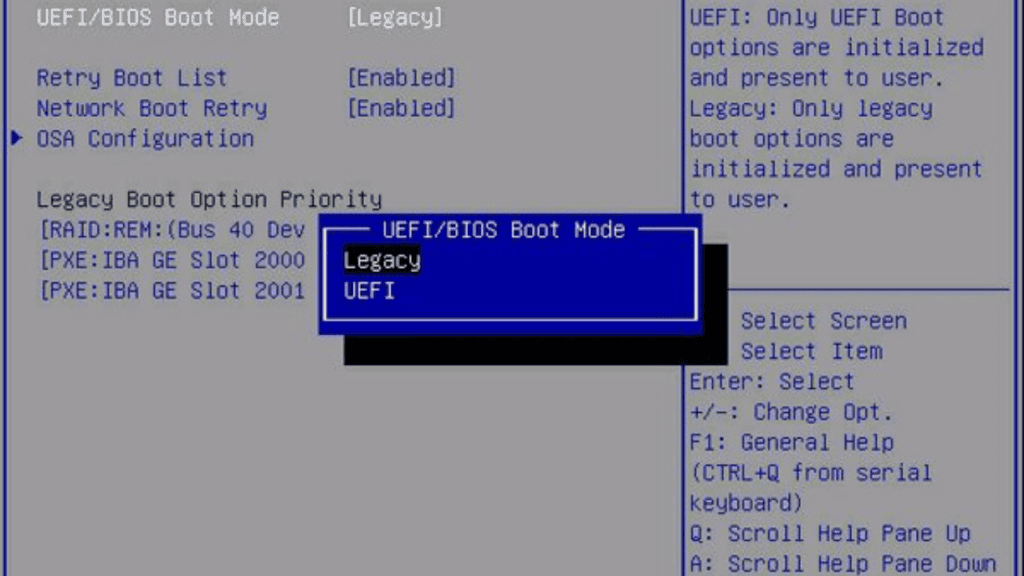
Updating the BIOS on a PC may sound complicated, but it’s sometimes needed to support new hardware, fix system issues, or improve security. Thanks to modern motherboards, the process is now much safer and easier than it was in the past.
In this guide, you’ll learn what a BIOS update does, when you should perform one, and the safest methods to update it step by step. Whether you’re upgrading hardware or fixing system issues, this walkthrough keeps things simple and reliable.
What Is BIOS and Why Does It Matter?
BIOS (Basic Input/Output System) is the firmware that boots up your gaming PC, not the OS. Before Windows begins to load, the BIOS checks that all the hardware components including the CPU, memory, storage devices and graphics card are all working properly. Yes, your computer cannot boot without a working BIOS.
Today, BIOS has mostly been replaced by UEFI (Unified Extensible Firmware Interface) on newer systems. The UEFI provides for faster boot times, improved security features, support for larger drives and a more contemporary interface that you can navigate with a mouse. Updating the BIOS is still the common term, but if your computer only supports UEFI, you’ll be loading UEFI firmware.
Being the software at the very base level of your PC, any change to it will mean changes are made to how hardware behaves and communicates with your operating system.
What Do You Need To Update Your BIOS?
Unlike an operating system update, a BIOS update can only be installed so many times. You only need to update your BIOS if there’s a clear reason to do so.
You may want to upgrade your BIOS if:
- You are trying to install a processor which requires an updated BIOS.
- Your motherboard manufacturer has listed stability fixes, bug fixes, or performance improvements that target problems you’re experience.
The BIOS update is necessary for adding support for new memory kits, or adding support for new storage devices. Also, if Microsoft had requested a BIOS update so Windows doesn’t crash if you’re using the newest Nvidia GPU.
Remember, the updated BIOS can partially or totally invalidate existing compatibility and program functionality. Also, interrupted BIOS updates can brick your motherboard.
Significant Risks To Be Aware Before You Update
Here are some common risks associated with BIOS updates:
- If power is lost during the BIOS update process, the computer won’t boot!
- Flashing the incorrect BIOS update to your motherboard can render it inoperative.
- BIOS updates usually reset all custom or additional settings you have to default – boot order, fan curves and overclock settings and profiles.
Before you dive in, spend a few of minutes setting up your space.
Identify Your Motherboard Model
You will need to know your motherboard make & model and revision. In windows, you can open a Run prompt and type msinfo32 and find these under:
- BaseBoard Manufacturer.
- BaseBoard Product.
This information is used to download the correct BIOS file.
Check Your Current BIOS Version
In the same System Information window, take a look at BIOS Version/Date field. Compare with the version listed on the manufacturer’s website to see if you need an update.
Back Up Important Data
While updating your BIOS shouldn’t touch your personal files, it is still good practice to back them up just in case.
Record Your BIOS Settings
Make a note of any custom BIOS settings. Things like your XMP profiles, RAID mode or particular boot options. Resetting to defaults is usual with most BIOS updates.
Ensure Stable Power
Use a reliable power source. If you can, make sure not to update during a storm or periods of unstable electricity.
The Safest and Easiest Method of BIOS Updating (Step-by-Step)
This is generally the recommended and safest approach of updating BIOS.
- Step 1: Head to your motherboard or PC manufacturer’s Support page and download the latest BIOS update for your hardware.
- Step 2: Unzip the file if it is in compressed form.
- Step 3: Format your USB stick to FAT32.
- Step 4: Transfer the BIOS file to the USB drive.
- Step 5: Reboot your PC and boot it up into the BIOS/UEFI setup utility (repeatedly tap Delete, F2, or Esc).Go to Advanced Mode if this does not work.
Locate the BIOS update utility:
- ASUS: EZ Flash.
- MSI: M-Flash.
- Gigabyte: Q-Flash.
- ASRock: Instant Flash.
- Choose the BIOS file from the USB drive and start updating.
It is not recommended to power off system while update is on going. Once the update process is finished your system will reboot automatically.
Method 2: BIOS Flashback
Some of the new generation motherboards support something called BIOS Flashback; this means that you can update your BIOS without even booting to the system.
This technique is particularly useful when:
- The computer will not boot because the CPU is not compatible.
- You’re building a new PC with a chip that isn’t supported.
How BIOS Flashback Works
- Download and rename the BIOS file as instructed by the manufacturer.
- Copy to a USB drive formatted as FAT32.
- Plug the drive in to the BIOS flashback USB slot.
- Press the BIOS Flashback button on your motherboard.
- After the red indicator light stops blinking.
- When finished you have flashed the BIOS.
Method 3: Update BIOS Windows (Carefully use this method)
Many manufacturers also provide a Windows-based BIOS update utility. It’s easy, but more risky as any crash, freeze or background process running in the background of Windows will screw the update.
If you choose this option:
- Close all applications.
- Disable unnecessary background software.
- Never interrupt the update process.
What To Do Once You Update BIOS
After the update finishes:
- Go to your BIOS, return everything back to what you had it set as.
- Verify the boot guys in order and storage method.
- Verify hardware is detected properly
- Boot into Windows and check for stability.
- Resetting BIOS would be effective to troubleshoot minor issues if system is not acting as it should.
Final Thoughts
You shouldn’t be scared of updating your BIOS, it isn’t something hard to do, but it is also not something to be taken lightly. A well-executed BIOS update can fix a slew of hardware issues and add support for new features or security to your PC.
The trick is to be discerning, only taking updates when you actually need them and just following the official procedures (that’s especially important: never rush a firmware upgrade). Using the right tools can help ensure safe and easy BIOS updates.