
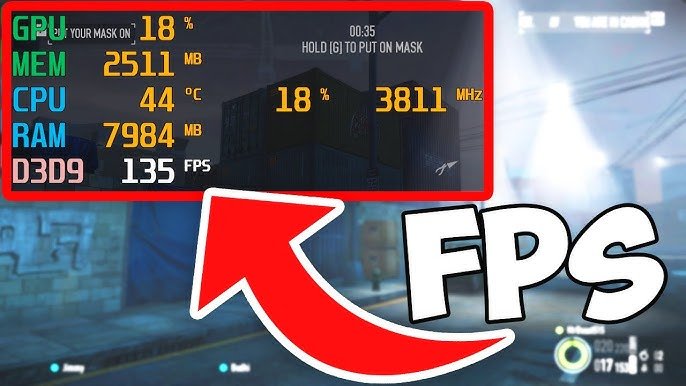
Are you curious about how well your favorite PC games are performing? FPS (frames per second), is the key number that tells you just that, and checking it on Windows is easier than you think. Whether you’re a casual gamer or a hardware enthusiast, knowing your FPS can help you fine-tune your settings and get the best possible performance.
In this guide, we’ll walk you through all methods of checking your FPS in Windows, including built-in tools, game launchers, GPU utilities, and third-party apps. By the end, you’ll be able to monitor your frame rate like a pro on any Windows machine. So, without further ado, let’s get started.
What Is FPS and Why It Matters in Gaming
FPS stands for Frames Per Second, and it’s the number of individual images your computer is producing and displaying every single second in a game. Every individual “frame” is a single still image, and when many frames are displayed quickly one after the other, they give the appearance of continuous motion. The smoother and the more responsive playing becomes, when the FPS value is higher.
When it comes to gaming, FPS is crucial because it directly influences how smooth the visuals look and how responsive your actions are in real time.
How FPS Affects Gameplay Experience
You may experience the following when FPS is too low:
- Stuttering or jerky movement.
- Lag between keystrokes or mouse movements and their on-screen feedback.
- Problems aiming or following an object quickly moving across your field of vision.
- Visual tearing or motion blur.
If on the flip side, you do indeed achieve a high FPS consistently, then all the following are also enhanced:
- Visual smoothness.
- Input responsiveness.
- Accuracy in fast-paced games.
- Overall immersion.
If you are into competitive games like first-person shooters, racing simulators and battle royales, this is a must have feature in your gaming pc.
Common FPS Benchmarks Explained
Different gaming experiences between various FPS levels:
30 FPS
Games at 30 fps even feel slow,like when the camera shifts extremely quickly. This is the frame rate many consoles are pushing for, although PC gamers strive for something higher.
60 FPS
The gaming standard for smooth is always set. Moving on to 60 FPS, and motion is nice and fluid, controls are that bit more responsive, and most players can be happy with the performance.
90–120 FPS
Provides significantly more fluid movement, especially on 120Hz or higher refresh rate monitors. Great for action-packed and competitive games.
144 FPS and above
Recommended by Vast variety of eSports and competitive players. The higher the FPS the less input lag and better overall looks of ultra-smooth animation.
FPS vs Hz of the Monitor
FPS and refresh rate are connected but aren’t the same thing.
FPS is the number of frames your computer can generate every second.
Refresh rate (Hz) refers to the number of times your monitor refreshes an image per second.
For example:
- A 60 Hz monitor can show up to 60 FPS.
- A 144 Hz monitor can show up to 144 FPS.
This is why syncing your FPS with the capability of your monitor is so important to get the best performance possible.
Why Checking FPS Is Important on Windows
Checking FPS helps you:
- Identify performance bottlenecks.
- Adjust in-game graphics settings effectively.
- Test hardware upgrades.
- Troubleshoot lag, stutters, overheating issues.
- Make sure you’re fully maximizing the value of your monitor.
If you’re not keeping track of your frames per second you have no clue how well your system is doing. This is why it’s so important to learn how to check FPS on Windows 11 or 10, no matter if you’re casual or high-end user.
Simplest Way To Check FPS On Windows: Xbox Game Bar
It runs on Windows 10 and Windows 11 out of the box, so you don’t have to load third-party software. If you just want to see your FPS while gaming, it’s frequently the best place to begin.
What Is an Xbox Game Bar?
It is an overlay made for gaming that comes as part of Microsoft Windows. Despite being originally thought of as a tool exclusively for Xbox, it’s become a versatile game service on Windows. Today, it allows you to:
See FPS and more in-game stats
With This App You Can:
- Keep an eye on CPU, and GPU loads. Check memory usage. Track VRAM usage.
- Record gameplay or background recording.
- The FPS counter flips as part of the Performance widget, which can remain onscreen while you play.
How to Turn on Xbox Game Bar on Windows
Xbox Game Bar is already enabled by default in most cases. Just do the following:
- Open Windows Settings.
- Go to Gaming.
- Click the Xbox Game Bar.
- Ensure “Enable Xbox Game Bar” is turned ON
If it’s disabled, enable it and then restart your PC to make sure everything works properly.
How to Monitor FPS with Xbox Game Bar (Step-by-Step)
- Checking the FPS is a really simple way in case you have enabled it.
- Open the game you wish to play.
- On your computer, press “Windows + G” together.
- You should now see the Xbox Game Bar overlay.
- Tap on the Performance icon (it’s that graph or speedometer icon).
- In the Performance panel, find FPS.
- Click on the Pin button so the FPS counter is always shown in all gaming sessions.
- Once you pinned, you can close the overlay and continue playing with just the FPS counter on display.
Granting FPS Permissions (Important Step)
The first time you launch Xbox Game Bar, it could prompt you to Request access data (fps, other etc). If you encounter a message requesting permission:
- Click Request Access.
- Restart your PC when prompted.
- Doing this, the FPS counter will show actual fps number.
Customizing the FPS Display
The Xbox Game Bar can be lightly, but conveniently, customized:
- FPS widget can be dragged anywhere on the screen.
- Resize Performance panel to better focus on the main screen.
- Turn other metrics like CPU/GPU use on/off.
- This flexibility lets you keep the display in sight without it clashing with gameplay.
Benefits of the Xbox Game Bar
- Easily available in Windows.
- No additional downloads required.
- Works with most modern games.
- Shows more than just FPS.
For casual gamers or people who are new to PC gaming, Xbox Game Bar is usually enough.
Limitations to Keep in Mind
The Xbox Game Bar does come with a few caveats, even for all its convenience:
- The overlay takes up much more space than a vanity FPS counter.
- Not as much customization as more advanced programs.
- No specific FPS numbers such as averages or 1% lows.
If you want only a quick FPS number, it’s great. If you’re seeking even more performance depth, at some point you might want something a bit more sophisticated.
How to Check FPS Using Steam’s Built-In FPS Counter
If most of your gaming takes place on Steam, its built-in FPS counter can be one of the easiest ways to monitor performance. Steam’s FPS counter doesn’t have all the features that more robust overlays do and is just a small box in one of the corners of your display, which is perfect if you’d like stats without cluttering your vision.
Why Use Steam’s FPS Counter?
The reason that so many people use Steam’s FPS counter, is because it:
- Has very little impact on gameplay performance.
- Functions on most Steam-launched games with no ‘work’ needed.
- Doesn’t require installing extra software.
- Shows FPS in an unobtrusive manner.
- Simplicity is exactly what they want.
How to Turn On the Steam FPS Counter
Here’s how to enable it:
- Open Steam.
- Click on Steam in the top-left corner.
- Select Settings.
- Go to the In-Game tab.
- Find In-Game FPS Counter.
- Select where your want the FPS number to be displayed (top-left, top-right, bottom-left or bottom-right).
- Optionally turn on High Contrast Color to make it more visible.
- Launch your game.
- Once the game has launched, the FPS counter will display automatically.
What the Steam FPS Counter Displays
Steam’s FPS counter displays:
Current FPS in real time
End of story, no charts, averages or additional metrics. This makes it very lightweight for easy reading.
In those rare occasions when Steam’s FPS overlay just isn’t enough, here is how to add more games.
This method works best if:
- You just want your current FPS.
- You don’t need hardware monitoring.
- You want to already know who you’re side-eyeing and not appreciating.
- All of your games are started via Steam.
For casual and mainstream gamers, one of the more common issues they experience is poor performance when playing their favorite games on Steam.
Limitations of Steam’s FPS Counter
It’s great, but:
- Works only for games started via Steam.
- Average FPS, 1% lows and frame-times are not given.
- Not to be customized besides its position and color.
Checking FPS with NVIDIA GeForce Experience
If you use NVIDIA graphics card, GeForce Experience can also track your FPS along with other performance details.
What NVIDIA’s FPS Overlay Offers
The NVIDIA overlay can display:
- Real-time FPS.
- GPU utilization.
- CPU usage.
- Performance statistics.
- Recording and streaming tools.
It’s a good balance of context, there’s more information than in the FPS counter of Steam here, without being overwhelming.
How to Enable FPS Counter in NVIDIA GeForce Experience
- Open GeForce Experience.
- Alt + Z will bring up the overlay for NVIDIA.
- Click Settings (gear icon).
- Select HUD Layout.
- Choose Performance.
- Enable FPS.
- Choose the corner you would like the FPS counter to display PlayerPrefs.
- Launch or return to your game.
You can also enable the performance overlay in-game using alt+R.
Customizing the NVIDIA Overlay
NVIDIA allows limited customization:
- Reposition the FPS counter.
- Toggle additional performance metrics.
- Easily switch on or off the overlay for when you are in game.
- Makes it a good middle-ground between simple FPS counters and feature-packed monitoring solutions.
Who Should Use NVIDIA’s FPS Counter?
This option is ideal for:
- NVIDIA GPU owners.
- FPS players who also want system stats basics.
- Streamers who are already using Shadow Play.
- If you already have GeForce Experience installed, then turning on FPS tracking is just a simple setting adjustment.
How to Monitor FPS with AMD Radeon Software
You don’t need third-party apps to check your FPS if you have an AMD graphics card. AMD Radeon Software offers an in-game overlay for monitoring of your gaming experience (including performance measurements) and providing instant access to some feature settings.
What the AMD Radeon Software Can Display
AMD’s overlay is for gamers that want performance metrics without a bunch of extra garbage. It can display:
- Current FPS.
- GPU usage and clock speeds.
- GPU temperature.
- VRAM usage.
- CPU metrics (on supported systems).
It’s a lightweight overlay that utilizes very little system resources and performs well with most modern games.
How to Turn On the FPS Counter in AMD’s Radeon Software
Here’s how you can enable FPS monitoring:
- Navigate to your desktop and right click to find and open AMD Radeon Software.
- Navigate to the Performance tab.
- Select Metrics.
- Enable FPS tracking.
- Go to the Overlay section.
- Turn on Show Metrics Overlay.
- Launch your game.
- During gaming, you can adjust the overlay with hotkeys.
Overlay Customization Options
AMD allows you to:
- Choose which metrics appear.
- Adjust overlay transparency.
- Move the overlay position.
And this flexibility lets you continue enjoying generating FPs without being distracted through your gameplay.
AMD vs NVIDIA FPS Tools
AMD and NVIDIA overlays have correct FPS counters. The difference is in the way the UI is designed, and integrated into an ecosystem. They’re not accurate more-or-less performance-wise, either, so it’s just a question of what team you support in terms of GPU make.
Using MSI Afterburner for the Advanced FPS Monitoring
For those PC gamers who are looking for comprehensive performance monitoring tool, MSI Afterburner is the best and most advanced fps tracker software in the game industry.
What kind of users need MSI Afterburner?
- PC enthusiasts.
- Hardware reviewers.
- Competitive gamers.
- Streamers and content creators.
It is compatible with all GPU makes and offers the perfect tool for air-cooled performance monitoring.
FPS Metrics You Can Track
Unlike many simple FPS counters, MSI Afterburner tracks:
- Real-time FPS.
- Average FPS.
- 1% low FPS.
- 0.1% low FPS.
- Frame times.
These metrics allow you to get an idea of more than just how fast a game runs, but if it feels consistent.
How to Enable MSI Afterburner FPS Overlay
- Install MSI Afterburner (RTSS will install with it)
- Open Afterburner and click Settings.
- Go to the Monitoring tab.
- Choose Framerate, Framerate Avg and Frametime.
- Check Show in On-Screen Display.
- Save, and launch the game.
Who Should Use MSI Afterburner
This tool is best if you:
- Benchmark hardware performance.
- Want precise FPS data.
- Experience stutters or frame drops.
- Play competitively.
Though it takes more time to get running, the information it delivers is unparalleled.
More Options to Show FPS on Windows
In-Game FPS Counters
So, in many PC games, they include default FPS counters directly in their game settings or developer consoles. These counters are generally accurate and easy to use, although they vary from game to game.
NZXT CAM
NZXT CAM is the monitoring software that brings everything down to the desktop, and is able to report out frame rates. It’s particularly handy for those with NZXT branded hardware, but works on most Windows PCs.
Common FPS Counter Problems and Fixes
Xbox Game Bar Not Displaying FPS
- Make sure Game Bar is turned on in Windows Settings.
- Provide Performance Access and restart your system.
- Update Xbox Game Bar through Microsoft Store.
Steam FPS Counter Not Appearing
- Enable Steam Overlay in settings.
- Check per-game overlay settings.
- Run Steam as administrator.
- Overlay Conflicts.
People have issues if they try to run two overlays at the same time. To fix this issue, disable all except one of the FPS tools.
What to know about accurate FPS testing
Here are some best do’s so you can keep those FPS in your range:
- Test FPS in the game, not in menus.
- Compare to same in-game scene.
- Average FPS and 1% lows, not just peak figures.
- Turn off background apps with performance impact
How Much FPS is Good for Gaming on Windows?
The “perfect” FPS is a subjective matter that will vary from gaming habits, GPU and monitor capabilities:
- 30 FPS: Minimum playability.
- 60 FPS: Ideal for smooth, fast gameplay for most games.
- 120-144 FPS: The best refresh rates for competitive gaming.
- 240 FPS: Enthusiast-level performance
Many single-player games are perfectly OK at 60 FPS, but competitive multiplayer titles gain a lot from higher refresh rates.
Take Away
Whether you love built-in options such as the Xbox Game Bar, or go for lightweight alternatives like Steam’s built-in FPS counter, you can accurately monitor your FPS during the game using these software.
By tracking FPS, you can see what changes are needed and make adjustments to keep your system from reducing game performance. If you’ve ever wondered how to find out if your FPS are consistent or abnormal, then knowing how to check FPS on Windows is a skill you need in your arsenal.