
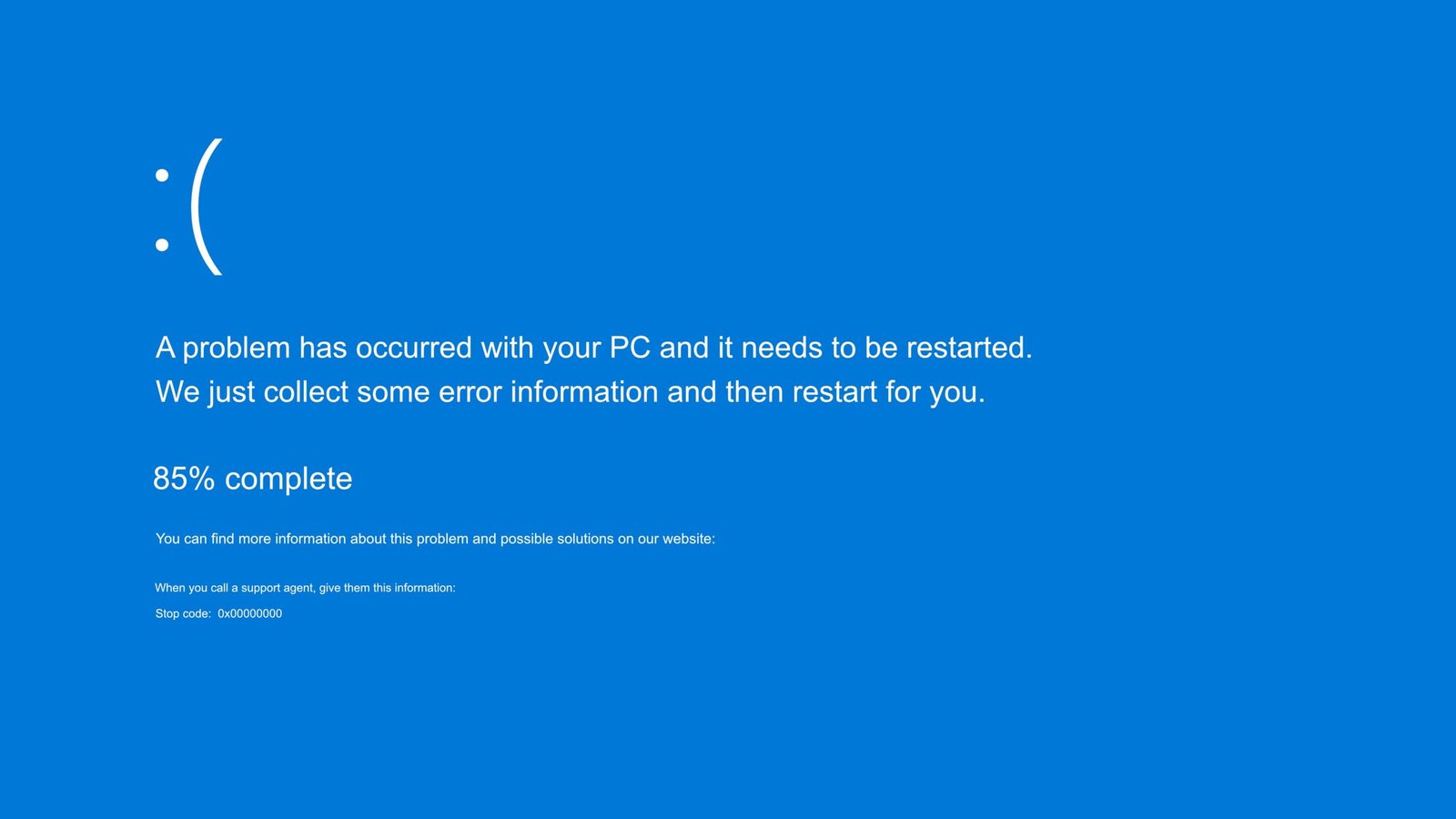
If your Windows 10 or Windows 11 PC suddenly crashes with a Blue Screen of Death (BSOD) showing IRQL_NOT_LESS_OR_EQUAL, you’re not alone. This stop code, also shown as Error 0xA, typically means a device driver or system component tried to access memory it shouldn’t have. It can be caused by bad drivers, corrupted system files, hardware problems, or conflicts between software and Windows itself.
In this guide, we’ll explain what this error is, why it happens, and tried-and-true steps to fix it without losing your files or settings.
What Is IRQL_NOT_LESS_OR_EQUAL and Why It Happens
The IRQL_NOT_LESS_OR_EQUAL error is a type of STOP error, or bug check with the code 0x0000000A that indicates Windows detected an invalid Interrupt Request Level (IRQL), which is used for prioritizing interrupts or that a process attempted to access this illegal IRQL. It causes a stop code (0x0000000A) and a BSOD so your system does not entirely crash.
Common triggers include:
- Faulty or outdated device drivers.
- Corruption in system files or Windows components.
- Tried hardware (particularly RAM).
- software that fights antivirus.
- New Windows updates that just don’t get along with your setup.
The First Thing To Do Is To Update or Roll Back Drivers
Because they interact directly with hardware of a gaming pc, drivers can be a common cause of blue screens.
Update Drivers
- Press Windows + X > Device Manager.
- Expand important ones(e.g: Display adapters, Network adapters etc).
- Right click on the device > Update driver.
- Select Search automatically, and install any available updates.
Roll Back Drivers
If the error began occurring after a recent driver update:
- In Device Manager right click the same device → Properties.
- Navigate to the Driver tab → Roll Back Driver (if available).
- Restart your PC.
If the Roll Back driver option is greyed out, you’ll have to obtain a compatible old driver from your computer manufacturer’s website and install it manually.normalement.
Run Windows Update and Optional Driver Updates
Windows Update often includes fixes for system files and drivers:
- Open Settings → Windows Update.
- Click Check for updates and Download and install.
- Go to Advanced options → Optional updates and install available driver updates.
- Restart the system.
Use System File Checker and DISM
BSODs may be due to corrupted system files. Windows itself includes tools to hunt down and repair them.
Run DISM and SFC
Press Win + R, type cmd and then hit Ctrl + Shift + Enter to open an elevated Command Prompt.
Run:
- DISM /Online /Cleanup-Image /CheckHealth.
- DISM /Online /Cleanup-Image /RestoreHealth.
- sfc /scannow.
- Let them finish, before continuing to the next tool.
- Restart the PC once finished.
These utilities can solve many of the most common issues causing BSODs, such as file system corruption and Windows image corruption.
Run Windows Memory Diagnostic
Common causes of memory (RAM) errors:
- Type mdsched in the Run box and hit Enter.
- Click Restart now and check for problems.
- The PC will then restart to check your RAM.
- Once the test is run, results will be displayed in Windows Notification area or Event Viewer.
- If you do, there may be a bad RAM sticks that would need to be replaced.
Perform a Clean Boot
Some third-party apps or services are in conflict with Windows, which can lead to BSODs.
Clean Boot Steps
- Press Windows + R, type in msconfig and press Enter.
- Services tab, Hide all Microsoft services then click Disable all.
- On the Startup tab, open Task Manager.
- Disable all startup items.
- Restart Windows.
If the BSOD goes away, enable groups of services one at a time to try an identify the problem.
Uninstall Recent Software or Drivers
If the problem began after newly installed software or drivers:
- Press Windows + R → appwiz.cpl → Enter.
- Find and uninstall recent installs.
- Restart and test.
- This can be very useful for antivirus and system utilities.
Use System Restore
If you have a previous restore point before the trouble started:
- Search Create a restore point → open it.
- Click System Restore → Next.
- Choose a restore point before the time when you got the BSOD.
- Follow the on-screen prompts.
- This is fast and it restores your system back to a stable state.
Update BIOS and Firmware
Sometimes stability can be caused by outdated BIOS or firmware:
- Go to your motherboard/laptop manufacturer website support page.
- Download the latest BIOS available and flash according to their guide.
Note: A bios update done in a bad way can lead to boot failure.
Check for Hardware Issues
If none of the software fixes do the trick, hardware problems, specifically memory modules, storage drives or overheating could also be responsible. The health of the hardware can be checked with a diagnostic tool and by making visual check.
Summary Checklist to Fix IRQL_NOT_LESS_OR_EQUAL
- Update or rollback drivers.
- Install Windows Update and optional updates.
- Run DISM/SFC system scans.
- Test RAM with Windows Memory Diagnostic.
- Clean boot to isolate software conflicts.
- Uninstall recent apps/drivers.
- Use System Restore if available.
- Update BIOS/firmware if needed.
- Check for hardware faults.
Take Away
The IRQL_NOT_LESS_OR_EQUAL BSOD can feel frustrating, but because it often stems from software issues or faulty drivers, most users can fix it with the steps above.
Start with drivers and system file checks first, then proceed to memory tests and clean boots if needed. With patience and systematic troubleshooting, you can often resolve this error without reinstalling Windows.