
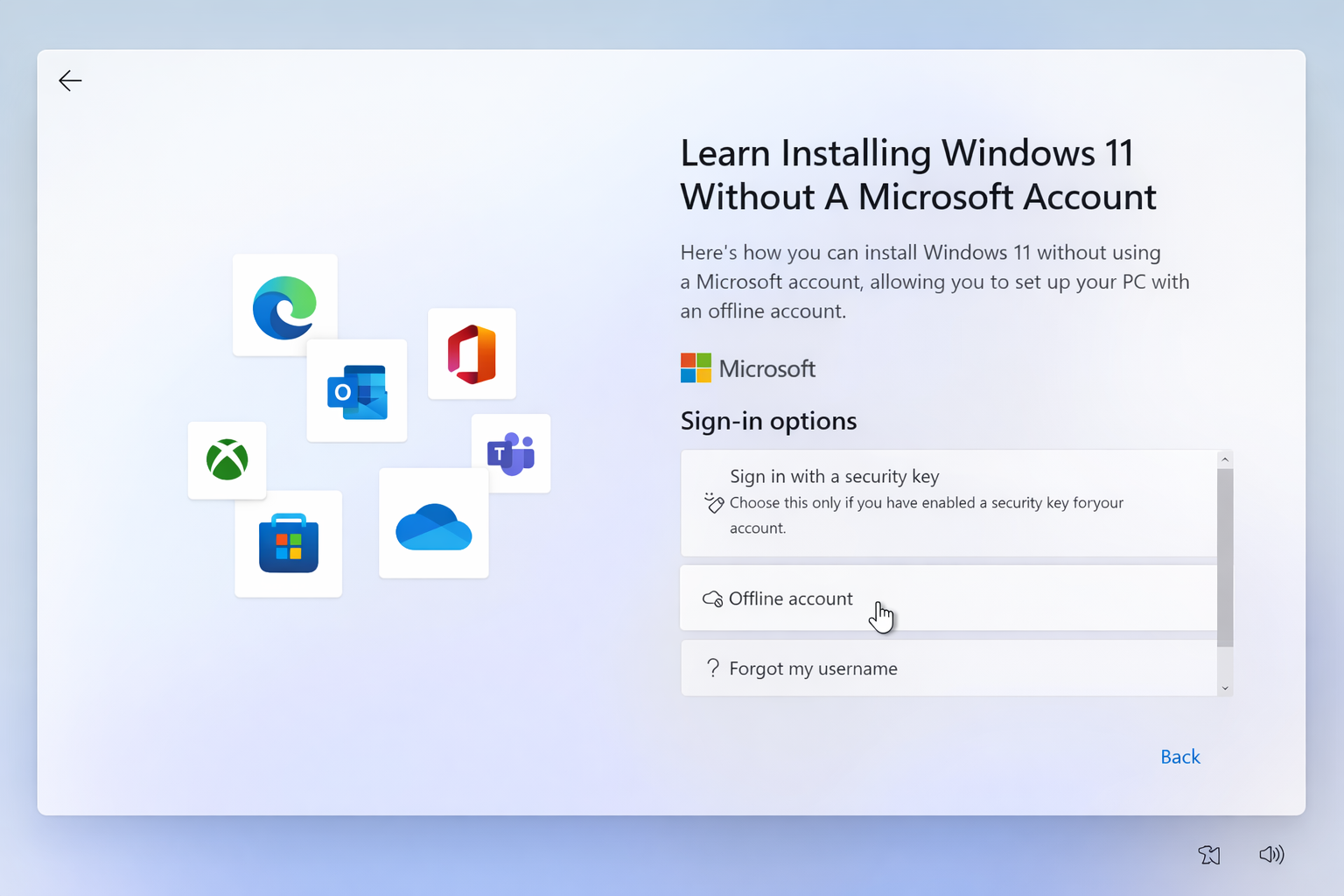
Windows 11 strongly encourages users to sign in with a Microsoft account, but many people still prefer the simplicity and privacy of a local account. Whether it’s for personal control, offline use, or reduced data syncing, this preference hasn’t gone away.
Although Microsoft has made the process less obvious, it’s still possible to install and use Windows 11 without a Microsoft account. This guide explains the practical methods that still work and what you should know before choosing a local setup.
Microsoft Account vs. Local Account in Windows 11
A Microsoft account is an online sign-on that ties Windows 11 to cloud-based services offered by Microsoft. It allows features such as syncing with OneDrive, Microsoft Store purchases, device backup and cross-device settings.
A local account, however, is only available on the device. It doesn’t need an email address or internet connection, and it keeps your data on local storage to give you greater control over privacy as well as system behavior.
The biggest benefit of a Microsoft account is that it makes it easy to use and access everything in the Microsoft ecosystem. But it also signifies more data syncing, reliance on the internet and less control during setup. Plus, creating or avoiding a Microsoft account during Windows installation doesn’t rely on the build of your pc and what processor it is running on.
Creating A Local Account During Windows 11 Installation
One of your best bets for escaping a Microsoft account is with a clean Windows 11 installation. This technique involves disrupting the installation before Windows makes you use an online sign-in.
You are asked to connect to the internet during installation, by Windows. Skipping or turning off internet connection will cause a restricted setup path and you can create a local account. This choice could present as a simplified or no-setup flow.
In recent Windows 11 builds, Microsoft puts this setting away more aggressively. The system is still using local accounts under the hood though, which is why other workarounds still work with setup.
Using the OOBE Bypass Command in Setup
If Windows 11 won’t let you move forward with the installation without a Microsoft account, bypassing OOBE (Out-of-Box Experience) is one of the best bet workarounds. It uses a baked-in setup command that spurs Windows to permit the creation of an offline account.
While at the account sign-in screen, click the command interface to restart setup in a changed manner. Once the system reboots, Windows offers an offline setup option; instead of signing in online, you can arrive at a screen to create a local username and password.
That works because Windows still has the internal ability to use local accounts, even though it’s all hidden in the standard interface now. It’s also particularly helpful on Windows 11 Home, which is the least flexible for Microsoft account enforcement.
With the local account in place, you can finish setup normally and use Windows 11 without ever associating a Microsoft account.
How To Install Windows 11 Without a Microsoft Account with Rufus
The Rufus is a widely used third-party tool that enables you to make a custom Windows 11 installation USB without some of those requirements. And there is one very useful feature which even lets you bypass the whole Microsoft account requirement during setup.
When making your bootable USB, Rufus gives you the option to bypass online account checks, hardware locks, and other limitations. If you choose to use the local account option, Windows never nags you to log in with a Microsoft account while setting up.
This will be useful in particular for the users who need to install Windows more often or have multiple PCs, and would like to avoid a messy setup every time. It eliminates the necessity for workarounds by hand during installation.
Rufus does a better job and is recommended by advanced users, technicians, and system builders who need full control over their Windows 11 configuration.
Fake Account Information and Other Hacks
Another popular trick is to input non-existent or incorrect Microsoft account information while configuring Windows 11. If Windows can’t verify the account, then you might be able to select a local account instead.
This approach is hit or miss and varies with version/build of Windows. In some scenarios, Windows does nothing but loop back to the sign-in screen when the password is entered incorrectly; in others it permits creation of a local account after enough failures.
Since Microsoft continuously patches workarounds, it’s less trustworthy than other procedures such as the OOBE bypass that even refuses to work, or Rufus.
In the case of users installing Windows 11 on antiquated systems or disconnected from networks, incorrect credentials might still initiate the offline setup path but with possibly wide-ranging effects.
Creating or Switching to a Local Account After Installation
If Windows 11 has already installed with the Microsoft account, It is also possible to switch to a local account without reinstalling the OS. This method is great for those who, when originally setting up their device, agreed to log in with Microsoft, but now wants out.
For now, let’s just add a new local user or switch your existing account to a local one in the Windows settings. Enable the local account and then log off of your Microsoft-associated profile and you’re ready to use Windows offline.
This way, you can keep your installation of the system and get rid of depending on the cloud. But there will be some features that involve Microsoft, such as syncing to OneDrive and account-based backups, which will no longer be accessible after the transition.
For a lot of users, this approach represents the best compromise between privacy and convenience, especially for people who can’t easily reinstall Windows.
How To Remove A Microsoft Account from Windows 11?
In order to completely get rid of a Microsoft account in Windows 11, you need a local admin account already set up on the machine. You can’t delete the primary account in Windows without another admin level account.
After you’ve signed in with the local account, you can remove the Microsoft account profile from system settings. This removes local data, synced settings, cached credentials and OneDrive files which have been downloaded to this gaming PC.
Enable it first before you proceed and then shut it down once you’ve gotten all the data out. The synced files via PC OneDrive exclusively and from Microsoft Services will no longer be available immediately right after deletion.
This will result in your Windows 11 device being able to run entirely offline without you having to sign into a Microsoft account, enable cloud syncing, or sign in just to get work done.
Difference between Windows 11 Home vs Pro vs Enterprise
Windows 11 editions make Microsoft account mandatory to varying extents with Home the most limited in this regard. During setup, Home editions put online sign-in as obligatory in all instances except those involving a workaround.
Windows 11 Pro has just a little more flexibility, particularly in managed or business settings. Although Microsoft is pushing towards online accounts, Pro users can usually find better luck in finding the offline or local account options during setup.
The Enterprise and Education editions are the most adaptable. These are editions built for companies and will likely feature local accounts, domain accounts, and deployment-based installs as part of the experience, no Microsoft account sign-ins needed.
What You Lose Without A Microsoft Account
Using Windows 11 without a Microsoft account comes with trade-offs. You won’t have OneDrive cloud syncing, automatic backup of settings, or access to purchases and subscriptions tied to Microsoft services.
Features like the Microsoft Store, Xbox integration, and cross-device syncing will also be limited or unavailable. Certain apps may require sign-in for full functionality, including Mail, Calendar, and Teams.
While privacy and offline control improve with a local account, you sacrifice the convenience of seamless cloud integration. Users must weigh the benefits of enhanced privacy against the loss of these connected features.
Microsoft’s Future Direction and Potential Roadblocks
Microsoft is slowly locking down its Windows 11 setup to promote cloud integration. Recent updates to insider builds further restrict the possibility of creating an offline account, which may cause some workarounds to not work consistently over time.
That trend indicates that local account options could be entirely eliminated at some point in the future, particularly since its Home editions.
Keeping tabs on developments and testing installation options in more recent builds is a good way to keep yourself prepared for any changes that might make not want users creating local accounts.
Troubleshooting Common Installation Issues
Not even bypassing methods can guarantee Windows 11 installation will be smooth-sailing when dodging a Microsoft account. One common problem is failure to detect the network, making offline setup not look right.
If the OOBE bypass (or offline trick) doesn’t pan out make sure your system is indeed disconnected from the network, and that you’re using the right version of Windows 11. Workarounds might be blocked in some builds, especially if the device is online and new Home editions.
Other problems could be OEM bundled software that forces a Microsoft account sign-in. Learning these ‘pains’ can both save you time and frustration when setting it up.
Tips for Power Users
Power users can use custom ISO builds or deployment tools to skip the Microsoft account sign-in prompts and simplify the setup process. These approaches minimize manual steps, guarantee conforming to all devices and ease the workload in company or lab settings.
Conclusion
While Microsoft strongly encourages signing in with an online account, Windows 11 still allows users to create and use local accounts with a few practical workarounds. From offline setup to Rufus-based custom installs, several methods remain effective for privacy-conscious users.
Choosing a local account provides greater control, offline independence, and enhanced privacy, though it comes at the cost of losing cloud features like OneDrive, Microsoft Store syncing, and cross-device integration.
Frequently Asked Questions (FAQs)
- Can I install Windows 11 without a Microsoft account?
Yes, using offline setup, the OOBE bypass, or custom installation tools like Rufus, you can create a local account.
- Is a local account safer than a Microsoft account?
Local accounts offer more privacy and offline control, but you lose cloud syncing, Microsoft Store purchases, and cross-device features.
- Can I switch to a local account after installing Windows 11?
Yes, you can convert an existing Microsoft account to a local account through Settings → Accounts → Your Info.
- Why doesn’t the local account option appear during setup?
Windows 11 Home often hides local account creation when connected to the internet, forcing online sign-in unless workarounds are used.
- What tools help bypass Microsoft account requirements?
Reliable methods include disconnecting from the internet during setup, using the OOBE bypass command, or creating a custom USB installer with Rufus.